Magic Wheel - Spin Art Drawing
Nexify ForgeArt & Design
4.069.00 Reviews
- Version
- 1.1.8
- Installs
- 500.00K
- Age Rating
- Everyone
Screenshots
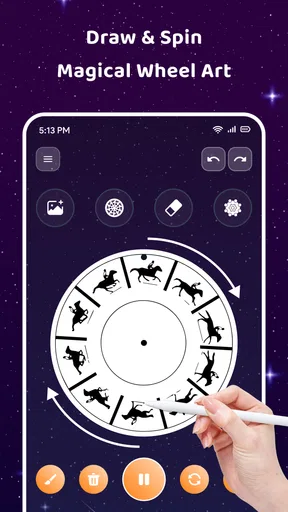
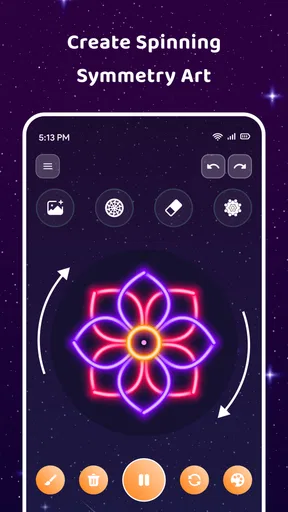
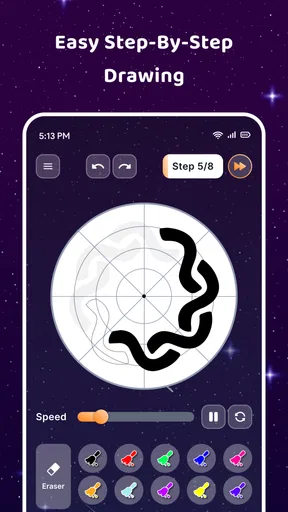
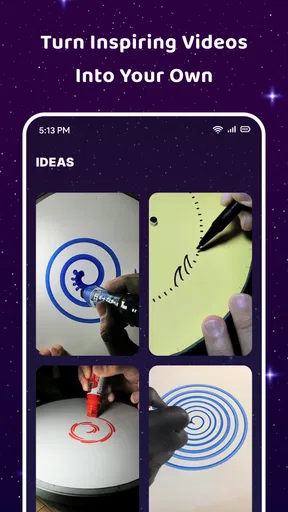
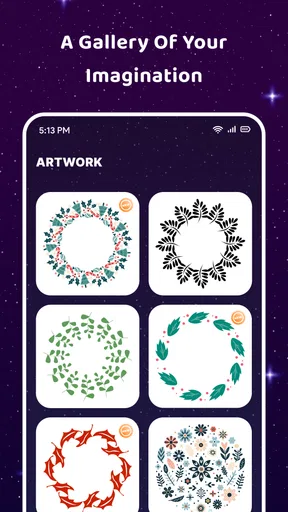
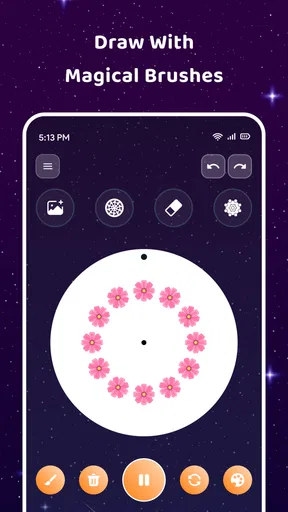
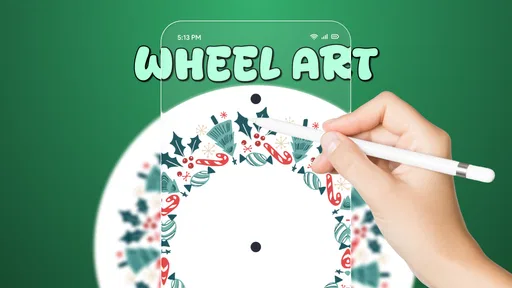
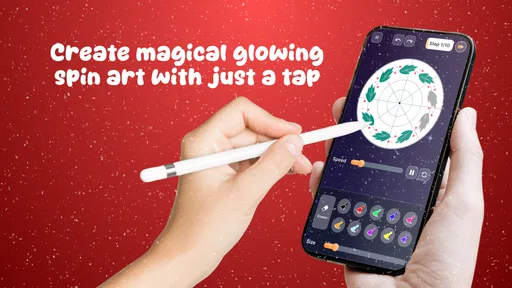
Our Review of Magic Wheel - Spin Art Drawing
 Analysis by Appyee
I opened Magic Wheel expecting a small drawing toy, and that is exactly where it makes the best impression: it turns a blank screen into a glowing, rotating pattern without asking me to learn a complicated art program first. It is an Art & Design app from Nexify Forge, built around spin art, symmetry, and colorful brush effects rather than traditional sketching. After spending time with it, I see it less as a replacement for a serious illustration tool and more as a relaxing visual workshop for quick experiments.
The appeal is immediate. I can choose a brush, place color on a rotating design, and watch the movement create something more elaborate than the original stroke. The process feels closer to making a digital mandala or a kaleidoscope than drawing a picture by hand. That makes it approachable for children, casual creators, and anyone who wants a few quiet minutes of visual play. It is free to start, carries an Everyone age rating, and has reached over 500 thousand installs, so it clearly fits the kind of lightweight creative app people pick up without much commitment.
How the creative wheel feels in everyday use
The strongest part of the experience is the relationship between a simple gesture and a surprisingly decorative result. A single curved mark can become a repeated motif when the wheel and symmetry do their work. I do not need steady drawing skills to produce something that looks intentional. That is important because many art apps begin with a blank canvas that feels like a test. Here, the visual system does much of the composition for me, while I still decide the color, placement, and rhythm.
I found the app particularly useful when I wanted a short break from a more demanding task. For example, after a long stretch of reading, I could spend a few minutes building a bright circular pattern, adjust the brush behavior, and stop when the result felt satisfying. There is no pressure to create a finished illustration. The value is in the motion and the reveal, which makes the app suitable for relaxation as much as for drawing.
That focus also defines its limits. If I want to draw a recognizable person, edit a photograph, prepare a logo, or work with layers and precise selections, this is not the tool I would choose. Its charm comes from controlled repetition, not detailed manual control. Comparing it with a conventional sketching app is therefore slightly unfair: those alternatives offer more freedom, while Magic Wheel offers a faster route to decorative results.
The store summary describes glowing spin art, symmetry, and magical brushes, and those ideas match the central experience without requiring the app to be treated like a full studio. I would recommend it to someone who enjoys experimenting with color and movement, but I would steer a professional illustrator toward software designed for precision, file organization, and advanced editing.
A practical routine for better results
My first useful discovery was that random tapping usually produces a weaker image than a deliberate sequence. I get better results by choosing one dominant color, adding a contrasting accent, and leaving some open space before introducing another brush. Because the wheel repeats the input, a small amount of color can quickly become visually dense. Starting lightly gives the pattern room to develop instead of turning into an overloaded circle.
I also found it helpful to treat the center and outer edge differently. Marks near the center tend to affect the visual focus, while strokes farther out can create a border-like rhythm. That makes it possible to build a simple hierarchy: a calmer middle, a stronger ring around it, and a final highlight for contrast. This is a more reliable workflow than covering the whole canvas evenly from the beginning.
Another trade-off is symmetry itself. It is the feature that makes the app feel magical, but it can also remove the irregularity that gives hand-drawn work character. When every mark repeats too perfectly, the image may look decorative but predictable. I prefer alternating between careful placement and a few deliberately uneven gestures, when the available brush behavior allows it, so the final design does not feel mechanically identical.
Who will enjoy it, and who should skip it
Magic Wheel suits casual creators, families looking for a simple art activity, and people who like visual fidget apps with a creative result at the end. It can also work for anyone who wants quick color ideas before making a physical mandala or pattern. Since the interaction is easy to understand, a first-time user can begin experimenting almost immediately rather than spending a long session learning menus.
I would be more cautious about recommending it to someone who expects a conventional drawing workflow. The app is not the right fit if you need pressure-sensitive line work, detailed anatomy practice, text tools, photo retouching, or a structured project system. It also may not satisfy users who want every creative decision to come directly from their own hand. The repeating wheel is the main attraction, but it is also the boundary around what the app can do well.
It is worth deciding what kind of relaxation you want. If you enjoy watching patterns emerge from repeated movement, this is a good match. If you prefer coloring within prepared shapes, freehand sketching, or guided lessons, another Art & Design app will probably feel more purposeful. Magic Wheel is strongest when the goal is discovery rather than instruction.
Controls, purchases, and the question of trust
The app is free, which makes trying the basic experience straightforward. It also includes in-app purchases ranging from $4.99 to $29.99 per item. That range is important to keep in mind before becoming invested in the creative routine. I would begin with the free experience and only consider spending money after deciding whether the available brushes and effects genuinely add value to the way I draw.
For me, the most sensible approach is to treat purchases as optional enhancements rather than part of the definition of the app. A relaxing drawing tool should not create pressure to buy immediately, especially when its appeal depends on casual experimentation. Before confirming any transaction, I would read the purchase prompt carefully and check which item is being offered. That small pause preserves control and avoids confusing a temporary burst of enthusiasm with a feature I will use regularly.
The app runs on Android versions starting with Android 7.0, which gives it a broad compatibility range for supported devices. Its current version is 1.1.8. Those details matter less for the artistic concept than for day-to-day practicality: an older phone may handle a simple drawing session comfortably, but glowing effects and repeated patterns can still feel different depending on the device. I would keep the app updated through the normal store process and pay attention to how smoothly the canvas responds on my particular phone.
When I review an app from a trust perspective, I avoid treating popularity as proof of privacy or quality. A 4.0 average from around 5.4 thousand ratings suggests a generally useful experience with room for disagreement, while the visible review count is around 69. That combination tells me to read user feedback for recurring complaints about purchases, stability, or controls rather than assuming that a rounded score answers every practical question.
I also prefer to examine the permission and privacy screens shown by the platform before I start using an app regularly. Those screens are where I can see the choices available to me at installation or afterward. I would not grant a permission unrelated to drawing, and I would revisit the app’s system settings if I changed my mind. This is especially sensible for a creative app, because drawing itself does not automatically require access to every part of a phone.
Where personal data decisions matter
The most data-sensitive moments are not the brush strokes themselves but the surrounding actions: installing the app, responding to permission requests, opening purchase screens, and deciding whether to share anything created inside it. I recommend slowing down during those moments. If the operating system presents a permission request, I read the wording instead of tapping through automatically. If a sharing option appears, I check the destination before confirming.
I would also avoid giving the app more access than I need for my intended use. Someone who only wants to experiment privately should keep the activity limited to the drawing surface and use the phone’s own controls to manage permissions. If I later decide to save or share an image, I can make that choice at that time rather than treating broad access as a requirement for casual play.
Account control is another practical consideration. I prefer apps that let me understand whether I am using them locally or signing into a service, and I would look closely at any screen that asks for account details. I would not create an account merely to test a spinning brush unless the benefit was clear to me. Keeping the first session minimal makes it easier to judge the actual creative experience separately from optional services or purchases.
These habits do not make the app less enjoyable. In fact, they make the experience calmer because I know which actions I am taking and why. I can focus on the pattern instead of wondering whether I accepted a prompt too quickly. The important point is to rely on the visible controls offered by Android and the app, not on assumptions about what a creative tool must or must not collect.
Comparing the wheel with familiar art alternatives
Against a basic sketchbook app, Magic Wheel is faster at producing symmetry and decorative repetition. A blank sketchbook gives me more freedom but also asks me to supply the composition, balance, and polish myself. The wheel provides a creative shortcut. I trade fine control for momentum, and that is a fair exchange when I want a pleasing result during a short break.
Against coloring apps, the experience is more active and less guided. I am not simply filling prepared areas; I am deciding where the repeated marks should go and watching the design develop. That can feel more expressive, but it also means the result depends on experimentation. Someone who wants a predictable, meditative coloring session may prefer a fixed illustration and a palette designed for it.
Against professional drawing software, the difference is even clearer. Serious tools win for precision, editing, export workflows, and complex projects. Magic Wheel wins for immediacy. I can open it with a vague idea, make a few strokes, and get visual feedback without building a document structure first. I would use the two kinds of apps for different moods rather than trying to replace one with the other.
The app’s best niche is therefore quite specific: quick, colorful, symmetrical play with a relaxing payoff. That niche is narrower than “digital art” in general, but it is also what gives the experience its identity. If the wheel-based interaction does not appeal to me after a few sessions, more features would not necessarily solve the problem; I would simply need a different kind of art tool.
My verdict after using it
Magic Wheel is worth trying if you want an easy creative pause, not a complete digital studio. I like how it turns small gestures into patterns and how quickly it gives me something visually satisfying. The app feels approachable for beginners, useful for casual decoration, and pleasant when I want to relax without following a lesson or planning a finished illustration.
I would keep expectations realistic around control, depth, and spending. The free starting point is convenient, but the optional purchases mean I would review each offer carefully. I would also make permission and account choices deliberately, using only the access and services that fit my own routine. Those checks are simple, and they help keep a playful app from becoming an automatic part of my phone habits.
Nexify Forge has made a focused Art & Design experience rather than an all-purpose drawing package. That focus is a strength for people who enjoy glowing symmetry and visual surprises, but a weakness for artists who need precision or project management. With an Everyone rating and broad Android compatibility beginning at Android 7.0, it is easy for many casual users to test. I would recommend downloading it when the idea of spinning color into patterns sounds relaxing; I would skip it when what I really want is a traditional sketchbook, editor, or professional illustration workspace.
Verdict
Strengths of Magic Wheel - Spin Art Drawing
- Simple controls make it easy for children and beginners to create artwork.
- Colorful spinning effects produce visually appealing patterns quickly.
- Encourages creativity without requiring drawing or artistic experience.
- Works well for short, casual sessions when you want a relaxing activity.
- Finished designs can provide satisfying results with very little effort.
Limitations of Magic Wheel - Spin Art Drawing
- Random spinning can make precise artistic control difficult.
- The creative options may feel limited for experienced digital artists.
- Repeated patterns and effects can become predictable over time.
- Some features or content may require ads or in-app purchases.
- Small screens can make detailed designs harder to inspect or edit.
Other Releases by Nexify Forge
View All
Falling Loop Filter Challenge
Entertainment4.4

AI Voice Changer
Music & Audio4.5

Spiro Art: Spirograph Drawing
Art & Design3.8
Similar Picks in This Category
View All
Canva: AI Photo & Video Editor
Canva4.8

PENUP – Drawing-sharing SNS
Samsung Electronics Co., Ltd.4.5

Crafto
Kutumb App4.6

Sketchbook
Sketchbook4.1

ibis Paint X
ibis inc.4.5

Adobe Express: AI Photo, Video
Adobe4.6
Frequently Asked Questions
What is Magic Wheel - Spin Art Drawing?
Magic Wheel - Spin Art Drawing is a creative drawing app that lets you make colorful spiral and spin-art designs with simple touch controls. Instead of drawing traditional lines, you place colors on a rotating canvas and watch them form symmetrical patterns. It is designed for casual creativity, relaxation, and experimenting with different color combinations without requiring professional artistic skills.
How does the spin-art drawing process work?
After opening the app, you typically choose colors, adjust the wheel or rotation settings, and touch the canvas to add paint effects. As the wheel spins, your marks create circular patterns and layered designs. The controls are easy to understand, although producing a balanced image may take a little practice. Experimenting with rotation speed, brush size, and color placement usually gives the best results.
Is Magic Wheel - Spin Art Drawing suitable for children?
The app can be suitable for children because it focuses on visual creativity rather than complicated rules or difficult objectives. Younger users may enjoy creating colorful patterns simply by tapping and watching the wheel rotate. However, parents should review the app’s age rating, advertising, and privacy information before installation, especially if the device is used by a child or shared with a family account.
Does the app require an internet connection or include in-app purchases?
The basic drawing experience may work without a constant internet connection, which makes it convenient for short creative sessions while traveling or when offline. However, advertisements, optional features, saved content, or other functions can depend on the version installed and the platform. Before downloading, check the Google Play Store or App Store listing for current information about ads, purchases, and permissions.
Can I save or share the artwork created in the app?
Magic Wheel - Spin Art Drawing may allow you to save completed designs to your device or share them through supported apps, depending on the version and operating system. This is useful if you want to keep a favorite pattern, use it as a wallpaper, or show it to friends. Check the export and sharing buttons after finishing a design, since available options can vary between Android and iOS.
